
DT = Diagnostic Triage
CA = Corrective Action
DT-2 Ping test All Servers using the run command using “ping -t [IP Address]”, and as applicable VMS, Redundant, NVR, Database, and NAS IP Addresses
- If All Server Ping Test Pass - perform DT-3
- If any Server Ping Test Fails - perform CA-3
Note: To obtain Server IP Address and Credentials- IP Information is maintained in the Freshdesk - Solutions Tab in the FAQ / General Information folder, Article “Relevant Information” follow provided link to the “Server Information” folder and locate the applicable IP Addresses. Or from the VMS client right-click a farm and look into its link [IP Address].
CA-3 Contact On-Site CS contact to verify if Device has power if not, guide On-Site contact to power on the device by:
- Ask if all Server IT Devices indicators are blinking.
- If the indicator is in stable condition > Restart server by long-press the power button for 3-5 seconds.
- If there are no lights in the indicator then > Turn on the server by long-press the power button for 3-5 seconds.
- If pressing of power button did nothing > Check power source.
DT-3 If All Server Devices fail Ping Test, Ping the Router / Gateway IP
- If the Router / Gateway IP Test fails and Power has been confirmed as non-factor.
- Contact the IP-VPN Provider Service Desk and begin collaboration efforts toward resolution
- IP-PVN Service Provider Service Desk Information is maintained in the Freshdesk - Solutions Tab in the FAQ / General Information folder, Article “IP-VPN Provider Information”
- Follow up Every 2hrs
- Monitor Via Ping test to Router
- Contact IP-VPN Service Provider Account Rep. if Service Desk does not respond per the SLA. Contact info is in the above-stated article
- Update ticket with diagnosis and activity notes
Note: To obtain Router / Gateway IP Address - IP Information is maintained in the Freshdesk - Solutions Tab in the FAQ / General Information folder, Article “Relevant Information” follow provided link to the “Server Information” folder and locate the applicable IP Addresses
DT-4 Remote Desktop to remote into the Site Server and determine if VMS Server is connected to the DBS Server:
- Check if the Database Server if running to its normal state
- If not, double check the power source and turn on the server.
- If the Database server has power and still has a problem.
- Check the connection inside the VMS server by:
- Open the Senstar Set Up Wizard (tip - search wizard)
- Verify the connection by the green check
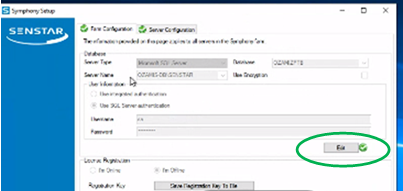
- If a Red X is present – that indicates VMS is not connected to DBS.
CA-4 To re-establish the connection of SQL Server 2014 and Senstar VMS Server:
- Open VMS Server and restart the AI InfoService inside the “Services”.
- If the connection still has a problem.
- Open SQL Server 2014 Configuration Manager.
- SQL Server Services.
- Check if SQL Server (SENSTAR) is running.
- If not, right-click then tick start.
- The connection should be now fixed.
Repeat the above connection verification to validate
Note: to obtain VMS Server IP Address (IP Information is maintained in the Freshdesk - Solutions Tab in the FAQ / General Information folder, Article “Relevant Information” follow provided link to the “Server Information” folder
Locate the applicable IP Addresses